« July 2010 | Main | December 2010 »

August 2010 Archives

August 8, 2010

Do You Believe in Magic?

Apple Magic Trackpad Box

It may be surprising to hear for those who know me but I don't follow Apple rumors very much. So their newly announced Magic Trackpad came as a complete surprise to me. At first I was like, seriously? A trackpad accessory for the desktop? I had always been under the impression that trackpads were just a tolerated pointing device who's longevity was due to being the de facto controller on laptops. Personally I don't mind using trackpads but it never occurred to me that people would want to use them outside of a laptop.

Apple Magic Trackpad Unboxed

Long time readers will remember that I'm traditionally a trackball guy. But I'm also willing to try new things. So it was that a Magic Trackpad found itself at my doorstep a few days later. As you can see, it's quite possibly the blandest looking Apple product I've ever unboxed. Just a flat grey slate for the most part.

Magic Trackpad w/Wireless Keyboard

Magic Trackpad Lined Up w/Wireless Keyboard

It does match quite nicely with Apple's wireless keyboard. Though oddly enough it's just a tad bit longer front to back than the keyboard. You would think since this is Apple they'd go that extra mile (or centimeter in this case) and make it a perfect fit. Not sure what happened there.

Magic Trackpad Next to Trackball

Physically it's also a little smaller than my existing Expert Mouse. Well, significantly smaller if you take the trackball's attachable wrist rest into account. And much thinner too obviously. And the best advantage over the trackball: being wireless. Unfortunately, Kensington et al. have so far still refused to come out with a new wireless trackball.

Original Finger Layout

Now when I first started using the trackpad, I started off having my hand positioned directly over it like you see above. Thumb and index finger down on the pad, all the other fingers held over it to be brought down when needed. This quickly proved to be a pretty poor way to work with the trackpad as holding the fingers up for extended periods of time gets tiring.

Final Finger Layout

So after some experimentation, I'm now using this hand position above. Basically the hand gets moved to the right so the ring and pinky fingers which are the most unused get to rest on the table instead of the trackpad itself. Another workable position has my pinky gripping the right edge of the trackpad. The middle and ring fingers still hover over the surface mostly but for some reason, with the pinky having something to grip and thus the hand spread out wider overall, the hand doesn't feel as tired over extended periods as before.

Interestingly, if you rest all your fingers on the trackpad and move only one, two, or three at a time while keeping the others immobile, the trackpad still works as usual. This also works on my MBP's trackpad but was never something I had to consider trying because the trackpad on the MBP is small enough so that you can rest your usually unused fingers on the body frame around it.

I'm still unsure as to whether or not the Magic Trackpad can replace my trackball for everyday use. Scrolling, which I do often, with the trackball is much easier although I prefer the three-finger swiping to go back or forward a page on the trackpad. Left and right button clicking is about even, with the trackball maybe coming in ahead because of dedicated buttons for each action.

Hands on Trackball

Just for comparison, the above shows my usual hand position when using the Expert Mouse. Thumb on left click button, index controls the trackball, middle finger rests on and controls the scroll ring, ring finger just rests on the frame inactive, and pinky presses the left click button if needed. Index finger also stretches over to click the top left and right buttons when I want to move forward or back a page. It's a much more comfortable device overall because every finger can rest somewhere on the trackball without inadvertently affecting things. With the trackpad, I discovered that whenever I was working in Photoshop, I'd often accidentally zoom in or out of the image I was working on as that app seems to not ignore the thumb contact correctly at times.

So for me, while the Magic Trackpad wins on size, portability, three finger swiping and lack of wires, the trackball does scrolling better and is just more comfortable overall to use which I think is a more important consideration for such a constantly used computer accessory. I'll keep using the trackpad primarily for another week or so to see if anything changes.
August 11, 2010

Incase Snap Case + Stand for iPhone 4

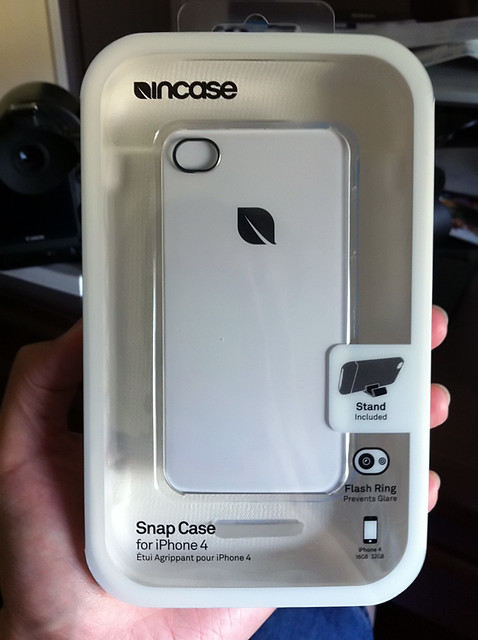
Incase Snap Case + Stand for iPhone 4

So a few weeks back I ordered this Incase Snap Case for the iPhone 4 through Apple's "We're Sorry You're Making Such a Big Deal Out of Nothing" program. ;-p It's not that I really needed it, having already gotten the ifrogz LuxeLean case beforehand which still works just fine. But who am I to turn down a free case? At the time it said shipping would be in 4 weeks so I think this came a little early.

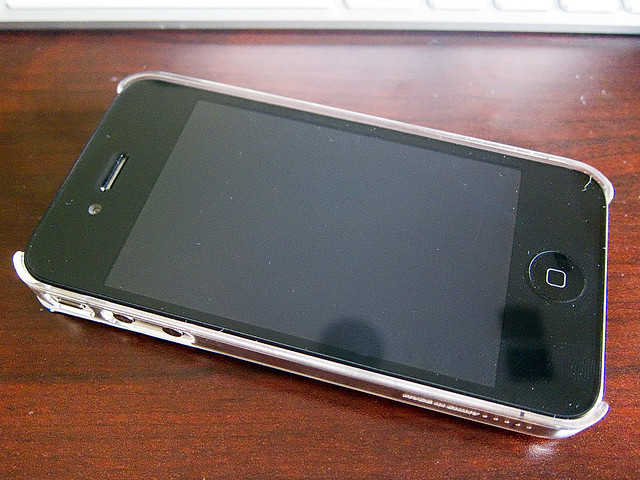
Incase Snap Case - Front View

As far as iPhone cases go, this one is pretty typical of the clear acrylic form-fitting cases I've had in the past with my previous iPhones. Compared to the ifrogz, as far as I can tell, it may be just a smidgen thinner but seriously, just splitting hairs at this point.

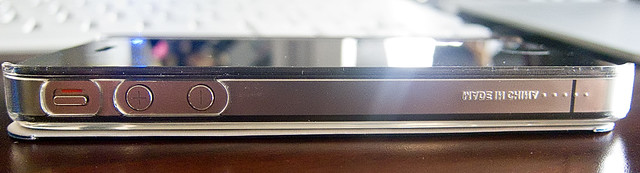
Incase Snap Case - Side View

The left side of the case is a bit more encased compared to the ifrogz with separate cutouts for the ringer/vibrate switch and volume buttons. The case is thin enough so that operating these controls doesn't take too much getting used to compared to having just the phone uncased. Not sure why they embossed the "Made in China" on the inside of the case but that doesn't affect anything. The right side of the case I didn't bother taking a photo of cause it's just straight covered plastic with an embossed Incase logo towards the bottom.

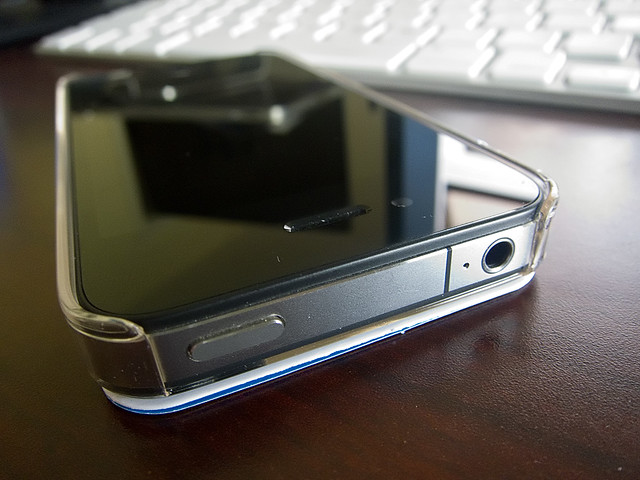
Incase Snap Case - Top View

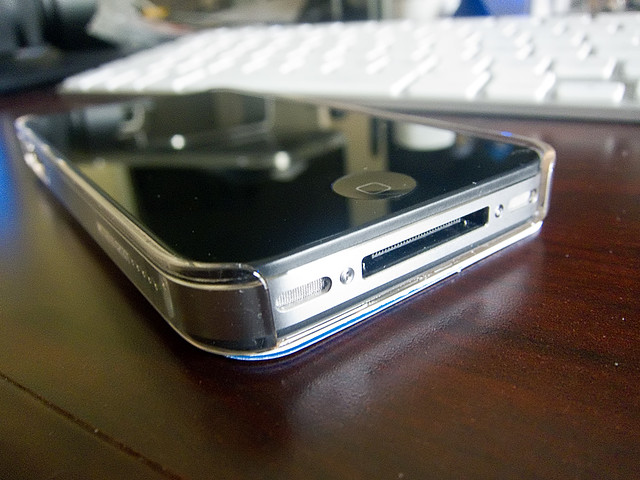
Incase Snap Case - Bottom View

The top and bottom of the case is pretty much exactly the same as on the ifrogz case. No surprises here. Easy access to all the controls, plugs and jacks at the expense of not so thorough protection.

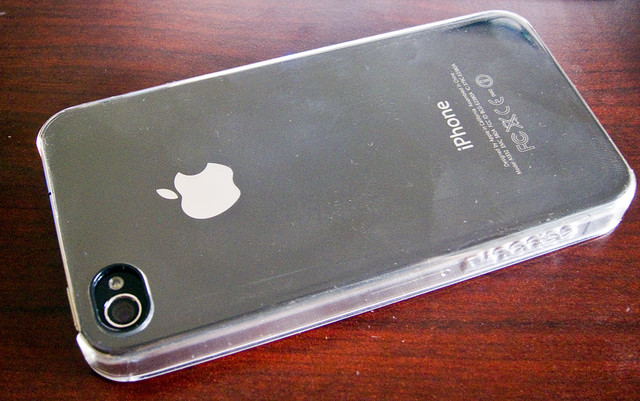
Incase Snap Case - Back View

And as you can see the back is pretty nondescript. The cutout for the camera lens + flash is not as form-fitting as on the ifrogz plus they encircled the edges of the cutout with what they call a "Flash Ring." Basically they just made the edges black so it cuts down on possible glare caused by the flash reflecting on the clear acrylic and bouncing back into the lens. I'm not a heavy flash user so not sure if this is truly useful or not but sounds good at least. =p You'll also notice from this shot of the back that like all clear acrylic cases, this one also picks up fingerprints quite easily.

Incase Snap Case + Stand

You do get a bonus with this case though: a little dual-sided clear acrylic stand. Incase tends to include these little stands with their thin cases. I remember having a S-shaped black plastic one for the iPhone 3GS when I got their perforated case. They're cheap and kinda dinky but convenient and perfectly functional in a pinch.

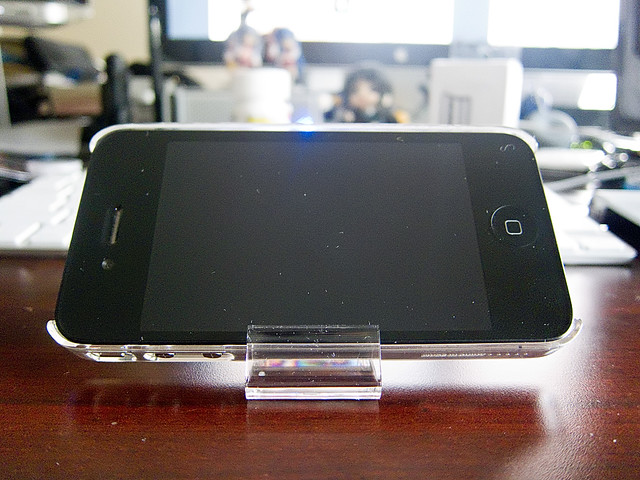
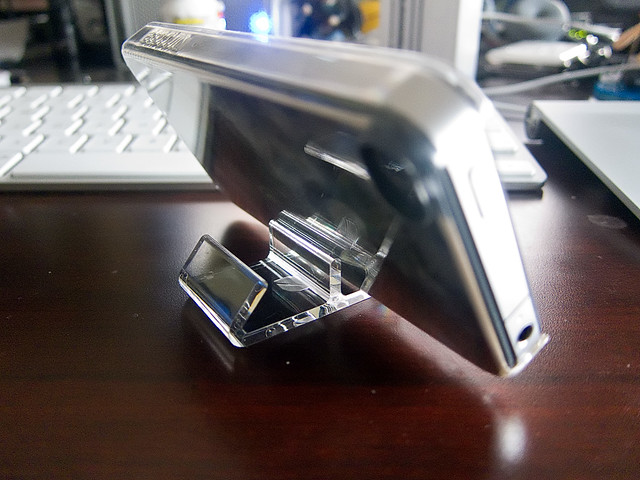
Stand Angle 1

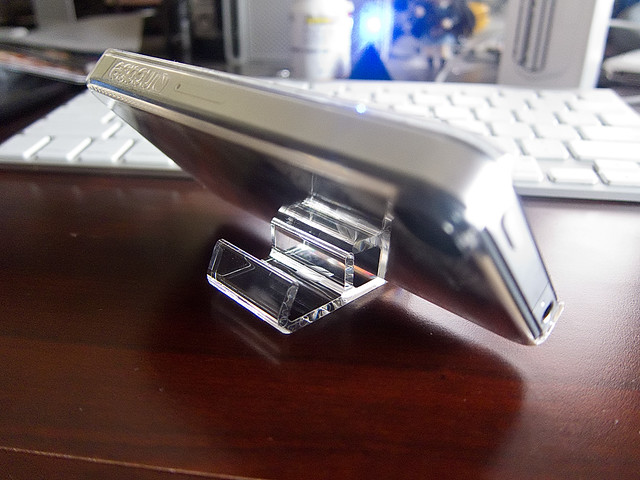
Stand Angle 2

As I mentioned it's dual sided so you can place the iPhone in at one of two angles. Not entirely sure what exact angles they are but something like 45 and 60 degrees would be my guess. And they only work with the iPhone placed horizontally. The iPhone will tip over backwards immediately if you place it vertically in the 45 degree angle. With the 60 degree it'll work but once you put any pressure on the phone it'll tip over. So just keep it in the horizontal position.

So, in a nutshell, this Snap Case is good if you're a real basic, no frills kinda guy. It's light and thin and gives you just the most basic of protection, mostly just against scratches. If you like to show off the look of the iPhone but still want some protection on it, then this case will be good for you. Like all clear acrylic cases though, I predict that the back of this one will wind up getting all scratched up after a couple of weeks. Better the case than the iPhone itself obviously but these types of cases don't usually retain their pristine forms for very long. Plus you'll have to wind up removing the case every now and then to clean out the tiny dust particles that will inevitably work its way in-between the back of the case and the iPhone itself. If you don't do this often, some of those particles can wind up scratching the iPhone. That may be less of an issue with these new iPhone 4s and their glass backs but it was definitely an issue on the previous iPhone 3GS.

Compared to the ifrogz LuxeLean, I probably favor the ifrogz a bit more at this point. The ifrogz, because of the colored paint has a more grippier feel to it than the Incase which can be quite slippery if you're not careful with it. And I like the felt-like backing that covers the interior of the ifrogz. That pretty much traps any wayward dust particles that make their way into the case and prevents them from moving around against the back of the phone. But besides that, both cases give you pretty much the same amount of protection with the least amount of size and weight addition.

About August 2010

This page contains all entries posted to Absurd Singularity in August 2010. They are listed from oldest to newest.

July 2010 is the previous archive.

December 2010 is the next archive.

Many more can be found on the main index page or by looking through the archives.

Subscribe


Add to Google Reader or Homepage
Creative Commons License
This weblog is licensed under a Creative Commons License.
Powered by Movable Type 8.4.0